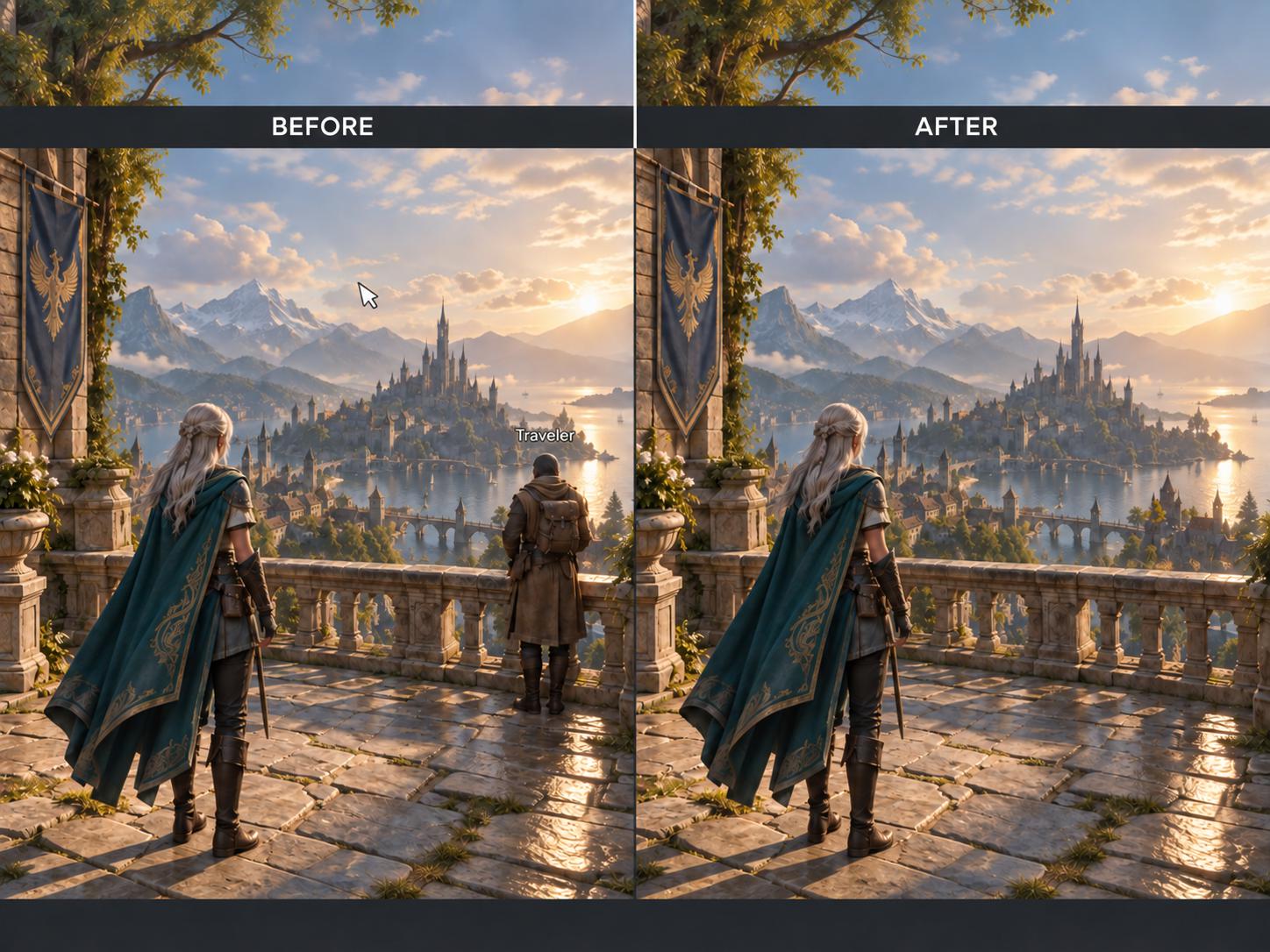
A good game screenshot can become a desktop wallpaper, a video thumbnail, or a group photo you keep long after everyone stops playing. The problem is what ends up around the subject: floating names, a mouse cursor, chat bubbles, or an NPC who wandered into the frame.
You cannot always recreate the moment. Cleaning up the saved screenshot gives you another option.
Why a Good Screenshot Can Still Look Busy
During gameplay, interface elements have a job. Quest markers tell you where to go. Health bars help you survive. Player names make a crowded lobby easier to navigate.
Once the image becomes a wallpaper, those same elements can get in the way. A bright marker draws attention away from the landscape. A name tag sits across your character’s outfit. A notification covers part of an otherwise well-timed shot.
Cropping works when the distraction is near an edge. Move it closer to the subject, though, and you start losing parts of the picture you wanted to keep.
Where an BeautyPlus Object Remover Helps
BeautyPlus Object Remover removes selected elements from an image and uses AI to fill the space they occupied. It also offers manual brush adjustments for refining the selection.
For game screenshots, that makes it an option for tackling small distractions without changing the whole frame. A cursor over the sky or isolated text above a character is a sensible place to start.
Results depend on what surrounds the selection. Removing something from a plain background gives the tool a simpler task than rebuilding intricate armour or a patterned wall. Treat each edit as something to inspect, especially around details that make a character recognisable.
For players looking to enhance photo to 4K for wallpaper images, cleaning up the composition first is a useful starting point. Remove the name tag or stray cursor, then assess whether the screenshot needs enhancement. Check faces, armour textures, and any remaining text against the original, since a sharper result can still introduce unwanted changes.
Decide What the Screenshot Is For
The intended use should guide the cleanup.
Wallpapers: Keep the scenery and composition intact. Look for small interface elements that pull your eye away from the view. Decide on the final screen shape before removing anything you might crop out anyway.
Character portraits: Focus on distractions around the head, shoulders, and outfit. Check the portrait at avatar size, where a floating name or background object can become surprisingly prominent.
Group photos: Start with chat bubbles or background figures that are separate from your friends. When characters overlap, removing one can affect the outline of another.
Video thumbnails: Plan the title position first. Clearing a small area behind the text may be enough. You do not need to strip every object from the scene.
Work Through the Image One Area at a Time
Start with the original screenshot file. A copy saved from a messaging app may already have lost detail through compression.
Open the image in BeautyPlus Object Remover and select the unwanted element. Refine the selection where needed, keeping it away from nearby details you want to preserve. Process the edit, then inspect the filled area before moving on.
A useful check is to look at three things:
Edges: Are nearby hair, weapons, and character outlines still intact?
Patterns: Do bricks, floor tiles, or foliage repeat unnaturally?
Text: Has any nearby lettering changed or become distorted?
Compare the edited version with the original. If an area looks worse, return to the original and try a smaller selection. Save the finished image as a separate copy.
Know When to Leave Something Alone
Object removal generates replacement content. It cannot reveal the exact scene hidden behind a large dialogue box, and it will not reliably reconstruct a face covered by an interface panel.
If the moment can be recreated, hiding the HUD or using the game’s photo mode may give you a cleaner starting point. Editing is more useful when you already have a shot worth keeping and only a few distractions to address.
Keep untouched screenshots for bug reports, score records, and guides that rely on accurate interface information.
For a wallpaper or personal post, start small. Open the screenshot in BeautyPlus Object Remover, tackle the most noticeable distraction, and check the result. Sometimes removing one thing is enough to make the image ready to share.