Apps like iLocationChanger make it easier to fake a GPS location on your phone to any place in the world.
Introduction
In a world where location-based apps dominate our daily lives, having control over your GPS location can unlock a myriad of possibilities. iLocationChanger is a powerful and user-friendly tool designed to help you change your GPS location on both Android and iPhone. Whether you’re playing location-based games like Pokémon GO, safeguarding your privacy, or exploring different dating app matches, this tool is versatile and reliable.
In this guide, we’ll dive deep into how iLocationChanger works, provide step-by-step guides for both Android and iOS users, highlight unique use cases, address potential challenges, and answer frequently asked questions.
How to Change Location on Android with iLocationChanger
iLocationChanger makes GPS spoofing on Android seamless. Here’s how you can set it up:
Step-by-Step Guide
- Download and Install: Visit the official website to download iLocationChanger.
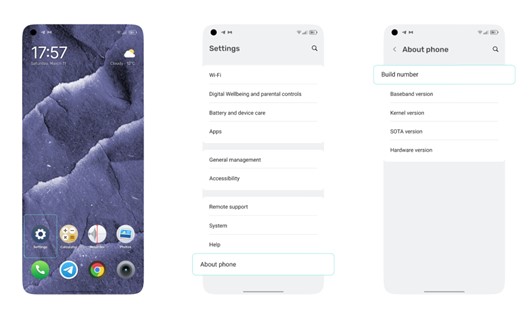
- Enable Developer Options:
- Go to your phone’s Settings.
- Tap About Phone and find the Build Number. Tap it 7 times to enable developer options.
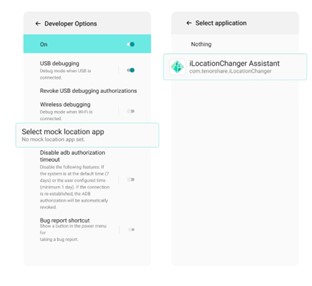
 3. Set iLocationChanger as the Mock Location App:
- In Developer Options, find Select mock location app and choose iLocationChanger.
 4. Launch iLocationChanger:
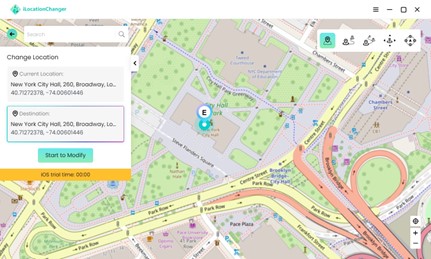
- Open the app, enter Change Location mode and select a desired location on the map.
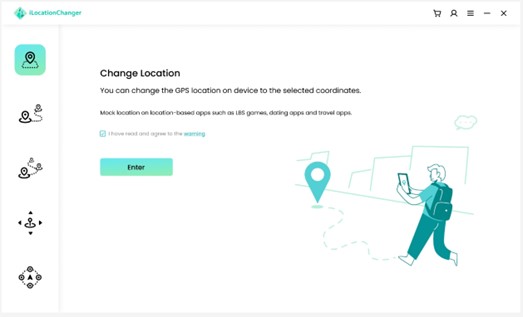
- Use other modes to simulate real-time movement if needed.
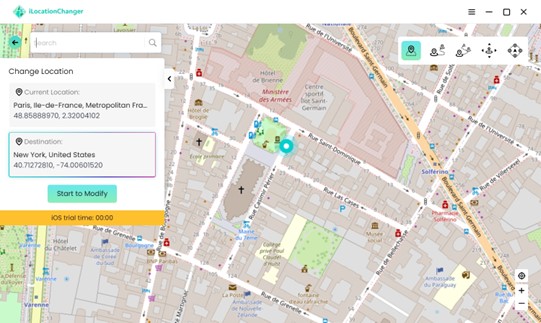
5. Activate Location Spoofing:
- Tap Start to Modify and confirm the location change. Your GPS will now reflect the selected area.
How to Spoof Location on iPhone with iLocationChanger
iLocationChanger offers a jailbreak-free way to modify your iPhone’s GPS location. Here’s the process:
Step-by-Step Guide
- Download and Install:
- Go to the official website and download iLocationChanger. Install it on your PC or Mac.
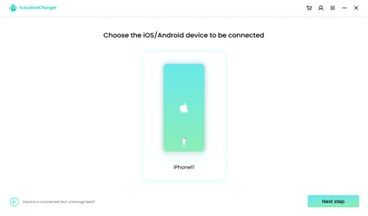
- Select the Mode You Want and Connect Your iPhone:
- Connect your device to your computer using a USB cable.
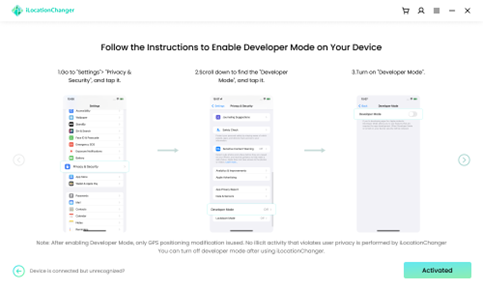
- Enable Developer Mode on your device
- Go to Settings > Privacy & Security, and tap it.
- Scroll down to find the Developer Mode, and tap it.
- Turn on Developer Mode.
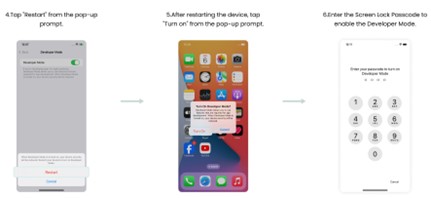
- Tap Restart from the pop-up prompt.
- After restarting the device, tap Turn on from the pop-up prompt.
- Enter the Screen Lock Passcode to enable Developer Mode.
6. Select Your Desired Location:
Take Change Location mode as an example.
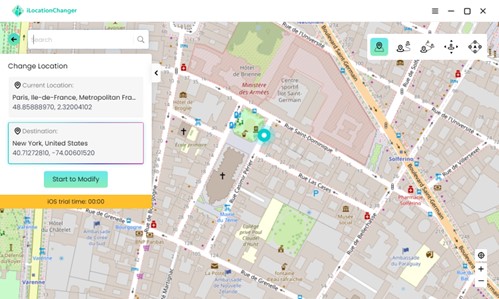
Browse or search for the desired GPS coordinates on the map.
- Click Start to Modify to teleport your iPhone’s location instantly.
Bingo! Now we’re in New York!
5. Verification:
- Open location-based apps (like Google Maps or Snapchat) to confirm the new location.
Unique Use Cases for Faking Your Location
Imagine you’re an avid Pokémon GO player. You’ve already caught all the local Pokémon in your area, but those elusive region-exclusive ones remain out of reach. With iLocationChanger, you can “travel” to Tokyo or New York with just a few clicks,
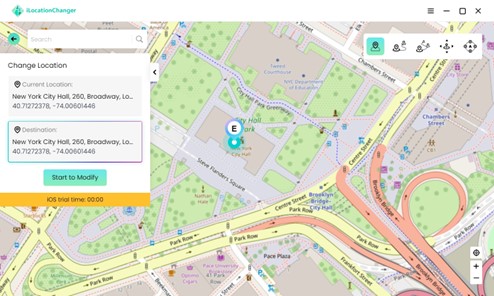
joining special events or exploring rare Pokémon spawns without ever leaving your home. The thrill of accessing new territories and expanding your collection can reignite your passion for the game.
Now, think about your privacy. Perhaps you’ve noticed apps like Life360 tracking your every move or social platforms constantly tagging your location. It feels invasive, and you wish for more control. By faking your GPS location, you can safeguard your whereabouts, create a private digital footprint, or even appear in a different city to maintain anonymity. It’s an empowering solution for those who value privacy in today’s hyper-connected world.
Dating apps often limit you to potential matches nearby, but what if your soulmate is halfway across the world? With iLocationChanger, you can set your location to Paris, Sydney, or anywhere your heart desires. Expand your pool of matches, discover people from diverse cultures, and connect with someone who truly matches your personality and preferences.
Traveling is another exciting scenario. You’re planning a trip to London, but you want to scope out the local weather, transportation routes, or hotspots before you arrive. By changing your location virtually, you can “explore” the city in advance, ensuring you’re well-prepared and confident about your itinerary.
For developers and testers, location spoofing is a practical tool. Imagine you’re building or testing a location-based app. Instead of physically moving across towns or countries, you can simulate various regions from the comfort of your desk. It saves time, resources, and effort while providing accurate results for your project.
Each scenario showcases how location spoofing isn’t just about convenience—it’s about creating opportunities and gaining control over your digital presence.
GPS Spoofing Tips
Using location spoofers like iLocationChanger can enhance your app experience by granting flexibility and freedom. Here are some tips to ensure a seamless and worry-free experience:
- Avoid Frequent Location Changes
- Rapid location shifts may raise red flags in certain apps.
- Tip: Practice mindful time management by spacing out your location changes to mimic natural movement patterns. This will help prevent apps from detecting unusual activity.
- Device Compatibility
- iLocationChanger supports Android devices with version 9 and above, as well as iOS devices running version 13 or later.
- Tip: Always ensure your device is updated to the supported OS version for optimal performance.
- Managing Location Changes Across Apps
- Once you modify your phone’s location, all GPS-enabled apps will reflect the new location.
- Tip: To prevent unintended effects on other apps, you can manually modify your location back to the original or simply restart your phone to reset GPS data.
- Network Errors:
- Inconsistent internet connection can disrupt spoofing.
- Tip: Use a stable Wi-Fi or cellular connection when using iLocationChanger.
By following these tips, you can make the most of iLocationChanger while maintaining smooth functionality across all your apps. Enjoy exploring new possibilities with confidence!
FAQs
Q1: How do I turn off location sharing on my phone?
- On Android: Go to Settings > Location > App Permissions and disable location access for specific apps.
- On iPhone: Navigate to Settings > Privacy > Location Services, and turn off location access for apps you don’t want tracking you.
Q2: Can I use iLocationChanger to change my weather location?
Yes, iLocationChanger works seamlessly with weather apps. Simply select the location you want to simulate, and your weather app will reflect the chosen area’s conditions.
Q3: Will iLocationChanger affect my device’s original location settings?
No, the tool only temporarily changes your GPS data. Once you stop the spoofing, your original location will be restored.
Q4: Can I use iLocationChanger for multiple devices?
Yes, iLocationChanger supports multiple devices. Simply connect each device to the app and follow the steps to modify their locations. But remember, one device at a time.
Final Thoughts
iLocationChanger stands out as a versatile and user-friendly location spoofer for Android and iOS users. Whether you’re safeguarding your privacy, or exploring new possibilities, this tool offers unmatched convenience and reliability.
While challenges like app detection or compatibility issues can arise, iLocationChanger provides advanced features to minimize risks. With its simple interface and powerful capabilities, it’s a must-try for anyone looking to take control of their GPS location.
Ready to experience the possibilities of location spoofing? Download iLocationChanger today and unlock a world of flexibility.