• Home
  • PS5
  • PS Plus
  • News
  • Features
  • Guides
  • Reviews
  • Games
  • Wallpapers
  1. Home
  2. News
  3. Current: How To Stream On Twitch From Your PS5 – How To Set Up Twitch On Your PS5
Guide How To Link Twitch Account PS5 How To Link Your Twitch Account On PS5 How To Stream On PS5 PS5 Set Up Twitch On PS5- PS5 Twitch Sony Interactive Entertainment Twitch Twitch Set-Up PS5

How To Stream On Twitch From Your PS5 – How To Set Up Twitch On Your PS5

Echo Apsey / November 20, 2020

how-to-stream-on-twitch-from-your-ps5-how-to-set-up-twitch-on-your-ps5

Sony has detailed how to stream on Twitch from your PS5, including how to set up and link your Twitch account to your PS5, and how to stream directly from your console to the service. This guide will teach you everything you need to know about Twitch on PS5.

On this page:

  • How To Link Your Twitch Account To Your PS5
  • How To Start Streaming From Your PS5

How To Link Your Twitch Account To Your PS5


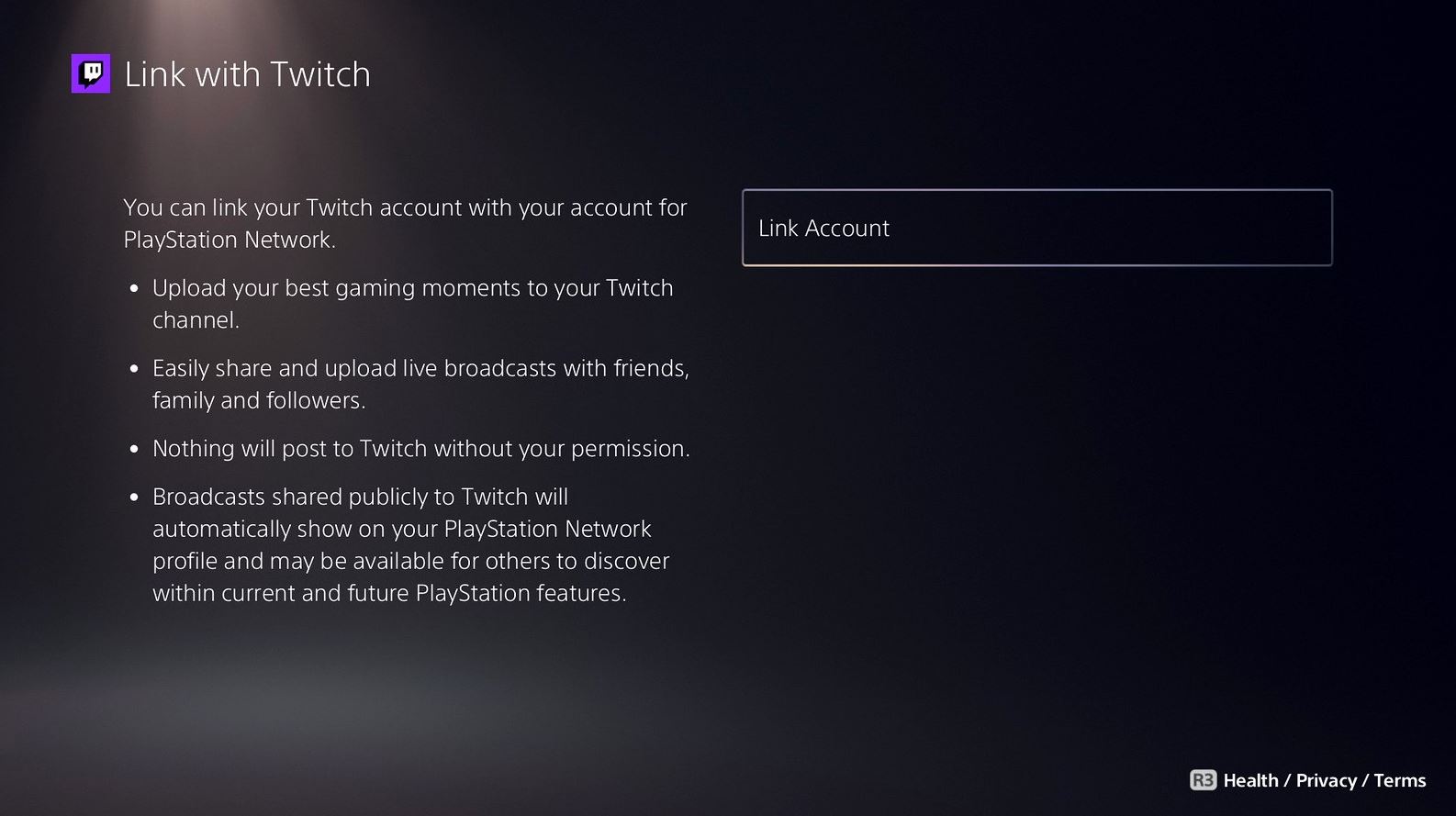
You can link your Twitch account to your PS5 by heading to the Settings menu at the top of the PS5 UI. From there, choose the option called ‘Users and Accounts’. Scroll down to the third option, which is ‘Link With Other Services’. From there, choose Twitch and then click links account, following the instructions on the screen. Doing this will allow you to set up the back-end of the PS5 and allow you to be ready to stream whenever you want. You will need to activate two-factor authentication if you want to stream from your PS5.

In order to attract more viewers to your Twitch streams and grow your audience, it is important to actively engage with your viewers. Chat with your audience and create a welcoming and inclusive community. Promote your streams on social media platforms and use special services that can help you get more Twitch Viewers quickly. Happy streaming!

How To Start Streaming From Your PS5


To start streaming from your PS5, hit the Create Button on the DualSense controller whilst you are playing a game. Select ‘Broadcast’ from the options and choose ‘Twitch’. The Broadcast option can also be selected from your customised Control Centre. After choosing Twitch, set a title, add a camera if you have one, and customise your overlay and position. Then hit ‘Go Live’ to start streaming.

In order to stop streaming, press the Create button on the DualSense controller and select ‘Broadcast’. Then, choose to stop streaming. Streaming can also be stopped from the Command Centre.

The PS5 is available now.

Related News

News

Samson Is Officially Coming To PS5 On September 21, Watch The New Trailer Here

Michael Harradence / September 4, 2026

The console versions of Samson: A Tyndalston Story have a release date! Watch the new trailer here.

Read more
News

Sony Japan Implements New Customer Harassment Policy Following Physical Game Disc Backlash

Michael Harradence / September 4, 2026

A new customer harassment policy has been implemented by Sony Japan following backlash over the decision to end physical game disc production.

Read more
News

Dispatch Creator AdHoc Studio Is Helping Write The Story For Until Dawn 2

Michael Harradence / September 4, 2026

Firesprite Games has revealed it is working with AdHoc Studio to develop the story for Until Dawn 2.

Read more

Upcoming Games

Sep 15

Marvel’s Wolverine (PS5)

Sep 18

The Walking Dead: Streets Of Survival (Nintendo Switch / Nintendo Switch 2 / PC / PS5 / Xbox Series X/S)

Sep 21

Samson: A Tyndalston Story (PC / PS5)

Sep 24

Control Resonant (PC / PS5 / Xbox Series X/S)

Sep 24

Silent Hill: Townfall (PC / PS5)

Sep 30

Alien Breed 35th Anniversary Collection (Nintendo Switch / PC / PS5 / Xbox Series X/S)

Oct 1

Rayman Legends Retold (Nintendo Switch 2 / PC / PS5 / Xbox Series X/S)

Oct 2

Ace Combat 8: Wings Of Theve (PC / PS5 / Xbox Series X/S)

© 2006-2026 PlayStation Universe, All Rights Reserved.

About PSU

PSU's YouTube

PSU's Twitter

Privacy Policy & Terms and Conditions

Advertise on PlayStation Universe

Contact

About

Staff

News

Reviews