When launching Battlefield 6, some players may encounter error messages related to Secure Boot. This issue can be frustrating. It usually occurs because BIOS or UEFI security settings are incorrect, preventing the game from starting.
This guide explains why the Secure Boot error occurs, how to manually enable Secure Boot, TPM 2.0, HVCI, and VBS. It also introduces a tool that quickly identifies what is blocking Secure Boot on your PC.
Table of Contents
Part 1: Background and Causes of the Secure Boot Error
Part 2: How to Enable Secure Boot Manually
Part 3: Enable Secure Boot Quickly with LagoFast
Part 1: Background and Causes of the Problem
Secure Boot is a security feature built into modern PCs that use UEFI firmware. It ensures that only trusted operating systems and verified drivers are loaded during system startup, preventing malicious software from running before Windows boots.
Battlefield 6 requires Secure Boot to be enabled to maintain a trusted and secure runtime environment that supports its anti-cheat mechanisms.
The Secure Boot error usually occurs for one or more of the following reasons:
- Secure Boot is disabled in the BIOS or UEFI
- The system is running in Legacy or CSM mode instead of UEFI
- Default Secure Boot keys have been modified or deleted
- The system disk uses MBR instead of GPT, which is required for Secure Boot
Understanding these points is essential before attempting manual configuration.
Part 2: How to Enable Secure Boot Manually
Before launching Battlefield 6, some PCs may show an error indicating that Secure Boot is not enabled. To resolve this, you must verify and configure several security settings in both Windows and the BIOS.
Check and Enable Secure Boot
Step 1: Check Secure Boot Status in Windows
- Press Windows + R, type msinfo32, and press Enter.
- Locate Secure Boot State.
If it shows On, no further action is required. If it is not enabled, you will need to access the BIOS to activate it, as explained in the next step.
Step 2: Enable Secure Boot in BIOS
- Restart your PC and press F2 or Delete to enter BIOS
- Switch to Advanced Mode if necessary
- Go to the Boot tab
- Set Secure Boot to Enabled
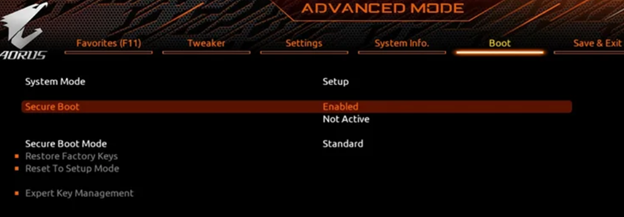
- Save changes and restart
- After rebooting, check Secure Boot status again using msinfo32.
Check and Enable TPM 2.0
Step 1: Verify TPM Status in Windows
- Press Windows + R, type tpm.msc, and press Enter
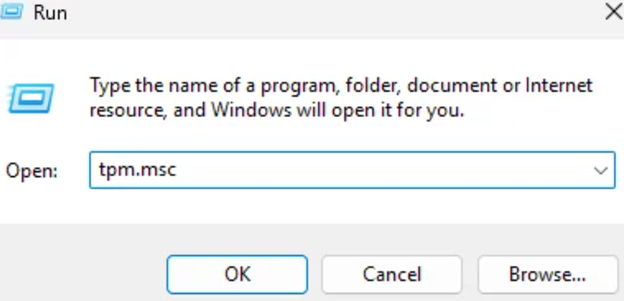
2. Confirm that the status shows The TPM is ready for use
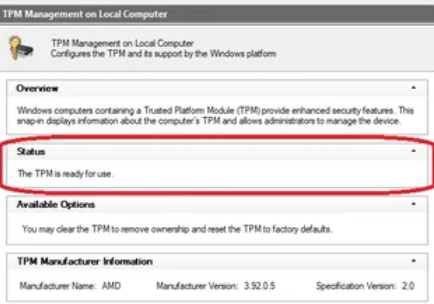
Step 2: Enable TPM in BIOS (If Disabled)
- Enter BIOS again using F2 or Delete
- Open Advanced, Security, or Trusted Computing
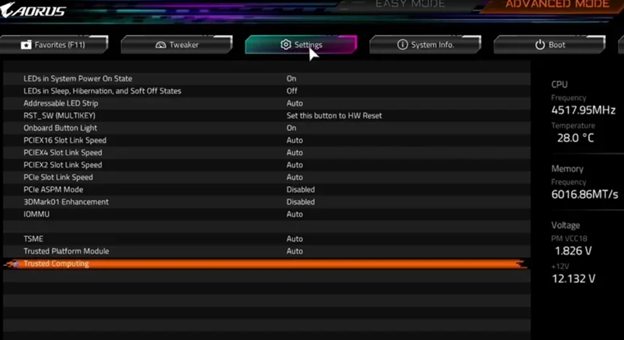
- Enable the TPM feature, which may be labeled as Security Device, TPM State, Intel PTT, or AMD fTPM, depending on your manufacturer.
- Save and restart
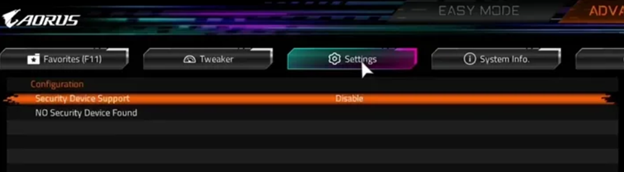
Without TPM 2.0, Secure Boot cannot function correctly.
Enable HVCI (Memory Integrity)
After enabling Secure Boot and TPM 2.0, your system should already meet Battlefield 6 requirements. However, in some cases, Virtualization-Based Security (VBS) and Memory Integrity (HVCI) must also be enabled.
Step 1: Enable Memory Integrity in Windows
- Open Settings → Privacy & Security → Windows Security
- Go to Device Security
- Under Core Isolation, click Core Isolation Details
- Enable Memory Integrity
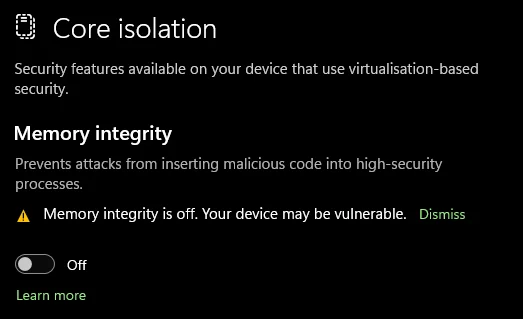
- Restart your PC
If the option is missing, VBS must be enabled in BIOS first.
Enable VBS (Virtualization-Based Security)
Step 1: Enable Virtualization in BIOS
- Restart your PC and enter the BIOS.
- Go to Advanced CPU Settings (or Tweaker).
- Enable SVM Mode for AMD or Intel Virtualization Technology for Intel.
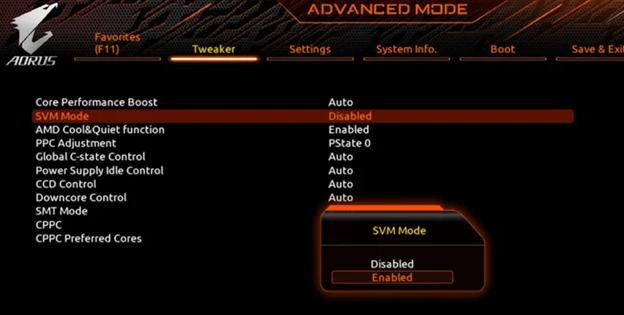
- Save the changes and restart.
- Go back to Windows and enable Memory Integrity if needed.
These steps fully prepare your PC for Battlefield 6. These steps prepare your PC for Battlefield 6. However, BIOS menus differ between manufacturers, so manual setup can be time-consuming and prone to errors. To simplify this process, LagoFast offers a Secure Boot Check Tool that quickly identifies what is preventing Secure Boot from activating.
Part 3: Enable Secure Boot Quickly with LagoFast
LagoFast’s Secure Boot Check Tool helps you identify why Secure Boot is not enabled — in just a few clicks.
Key Advantages
- Automatically scans Secure Boot-related BIOS and system settings
- Precisely identifies which requirement is missing or misconfigured
- Provides targeted, step-by-step instructions based on your PC model
- Eliminates trial-and-error BIOS configuration
Check Secure Boot Status with LagoFast
- Download LagoFast PC from the official website
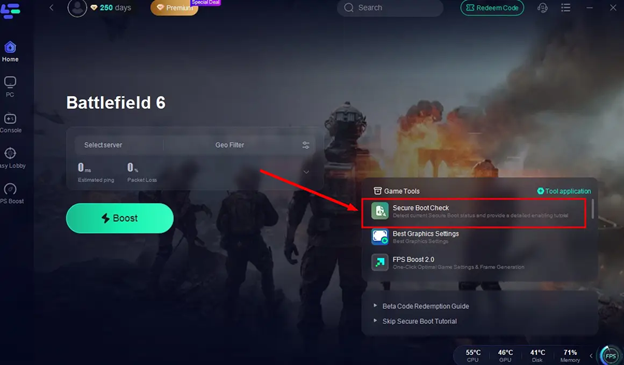
- Launch LagoFast and search for Battlefield 6
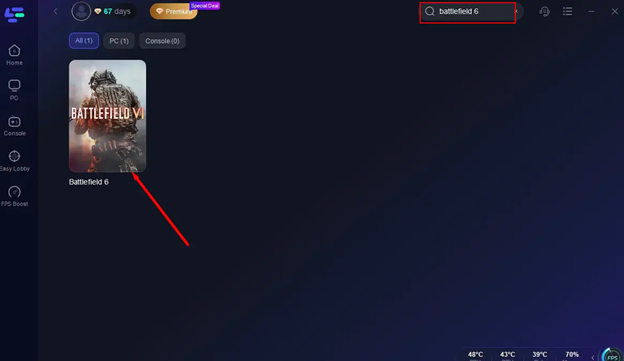
3. Click Secure Boot Check Tool on the right
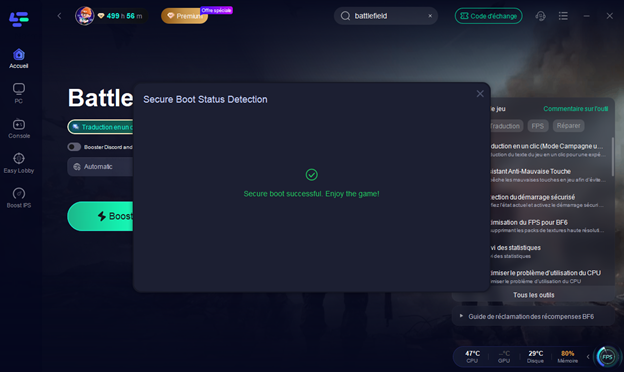
- If Secure Boot is enabled, you will see Secure Boot Successful
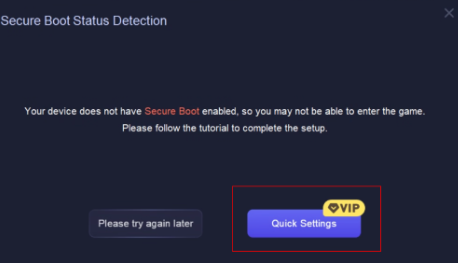
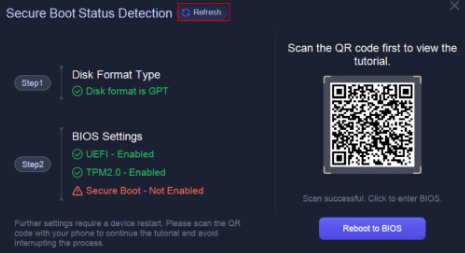
- If not, LagoFast will show exactly which setting is blocking activation and provide a step-by-step guide to fix it.
- Find Battlefield 6 and click “Select Server” to choose a stable server in your region
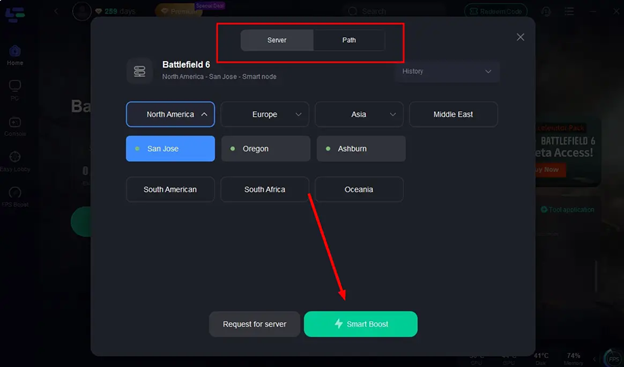
5. Click “Smart Boost” to begin optimization and monitor your ping, packet loss, and connection in real time
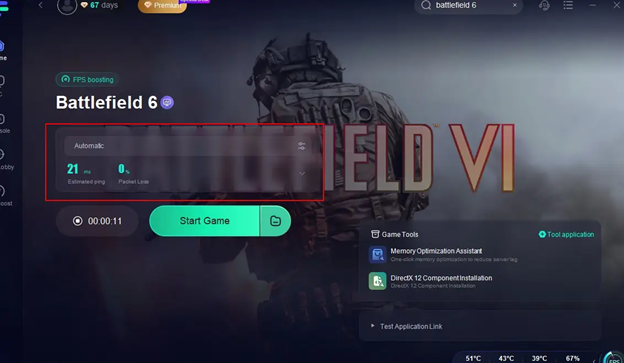
Additional Benefits of LagoFast
Beyond Secure Boot detection, LagoFast improves the overall Battlefield 6 gaming experience:
- Reduces high ping and network latency
- Boosts FPS and improves frame stability
- Automatically fixes network issues causing lag or disconnections
This means you can not only fix the Secure Boot error, but also enjoy smoother and more stable matches.
Conclusion
Secure Boot is essential for both security and compatibility in Battlefield 6. While manual configuration is possible, it can be complex and varies across systems. LagoFast’s Secure Boot Detection Tool simplifies the process by quickly identifying the exact issue preventing activation.
With the right setup and tools, you can fix Secure Boot errors efficiently and enjoy smooth, secure gameplay in Battlefield 6.