One thing that can dampen the spirits while trying to play a game more than anything else would be coming across an error message that reads “storage corrupted.” You have just fired up your console and are about to start playing only for your game not to load. At such a point, the immediate question to pop into mind will probably be “Are all my savings ruined?”
Luckily, it is rare for all the files and data stored on a console to get corrupted and deleted. This problem can be easily solved by following certain procedures. In this article, we shall look at what corruption of storage is, how it occurs, its solution and also game file recovery.
The process will be done in a clear and practical way.
What Does Corrupted Storage Mean?
Corruption of the console storage indicates that there is something wrong with the way the device reads information from the storage media. It can impact many different functions such as games, saves, downloads, and even system files.
Symptoms may include:
- Failure to open games
- Frequent error messages
- Loss of save data or lack of access to files
- Random crashes
For instance, you have finished a marathon play session, then saved the game and closed the console. The following day, when you attempt to start the game, it will not load due to corruption of the file.
In some instances, this condition occurs out of nowhere. However, there might be warnings that precede corruption such as lagging, freezes, or failure to launch games.
Common Causes of Storage Corruption
There are different reasons for storage corruption. Storage corruption does not happen due to one reason but many reasons. The following are some of the major reasons for storage corruption:
- Unexpected power cut: Unexpected power cut when saving or editing files might corrupt some of the files.
- Hardware Component Failure: There can be cases when the hardware components do not perform efficiently. For instance, there can be some bad sectors on the hard drive.
- Temperature problem: Temperature plays a significant role in causing problems in gaming consoles.
- Software Problem: Problems regarding software upgrade and software bug might cause corruption in the storage.
- Incorrect usage of the USB Storage Device: It should be noted that the USB storage device must be disconnected before taking it off from the gaming console.
This means that in case of an unexpected software update process, it would not be successful.
How Data Recovery Software Can Help
However, should the files prove inaccessible, the use of professional data recovery software might be considered.
There are many data recovery software, like Stellar Data Recovery, designed specifically to search for lost or corrupt files on storage devices. Even though the files are not seen, the software will find and recover them.
Advantages of these pieces of software are as follows:
- File recovery for lost or corrupt games files
- Compatibility with a variety of file types used by games
- Deep scan function
- Ease of use
For example, one can connect their faulty external hard drive or game console storage device to a PC and perform a scan with the help of data recovery software.
Steps to Recover Files Using Data Recovery Software
In case you opt to use recovery software, then you need to observe the following procedure:
Connect the storage device
Either disconnect the console drive or connect your external storage to a computer.
Installation of the recovery software
You can download Stellar Data Recovery on the computer. However, you should ensure that you do not install it on the drive from which you seek recovery.
Selecting the target drive
Once the software is installed, launch it and select the target drive on which you had stored the data for the game.
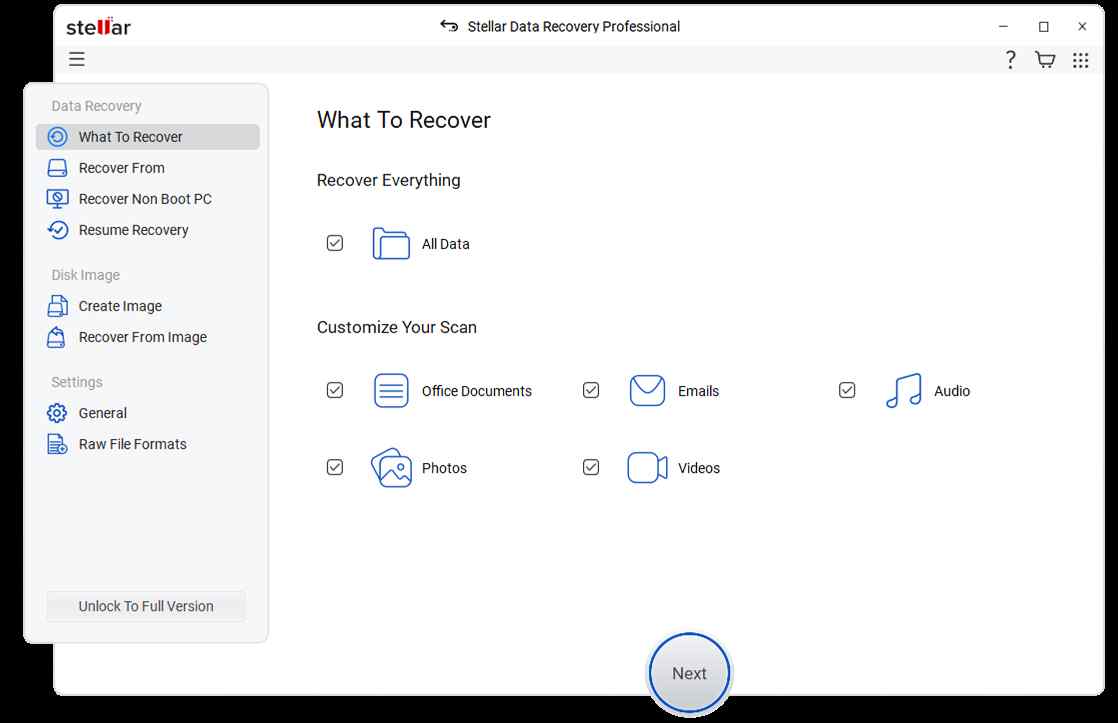
- File type selection
Select either “all files” or documents for inclusion of your game files.
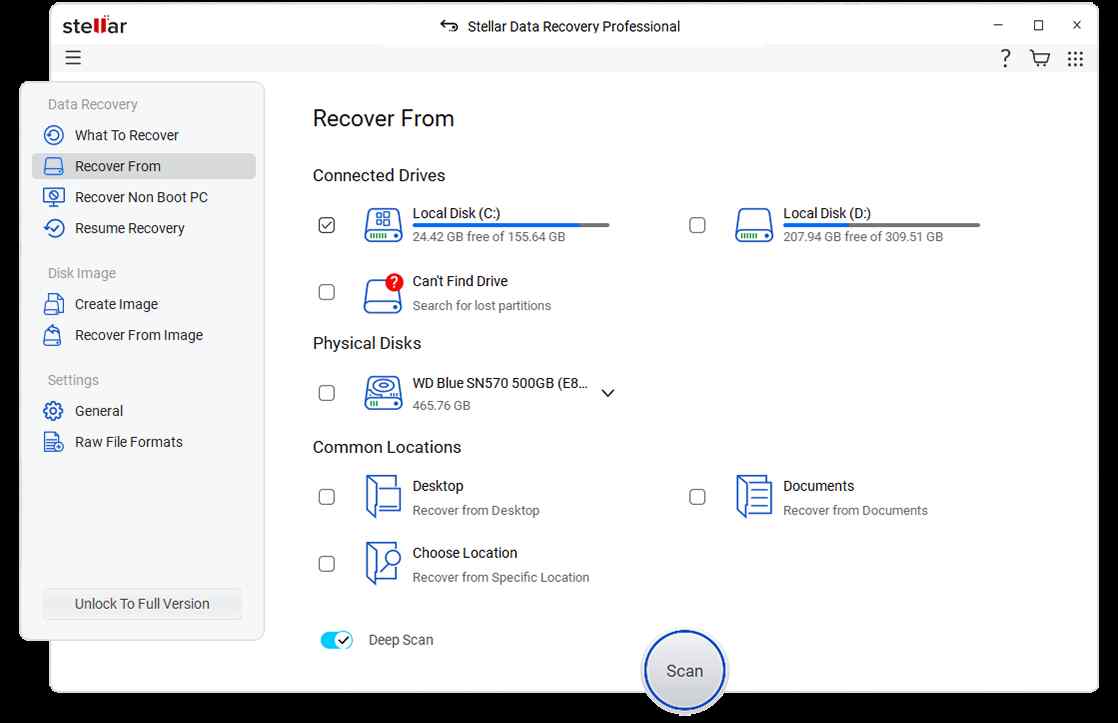
- Scanning process
First, run a quick scan, but if the results are unsatisfactory, run a deep scan.
- File preview
View the scanned results for the game files.
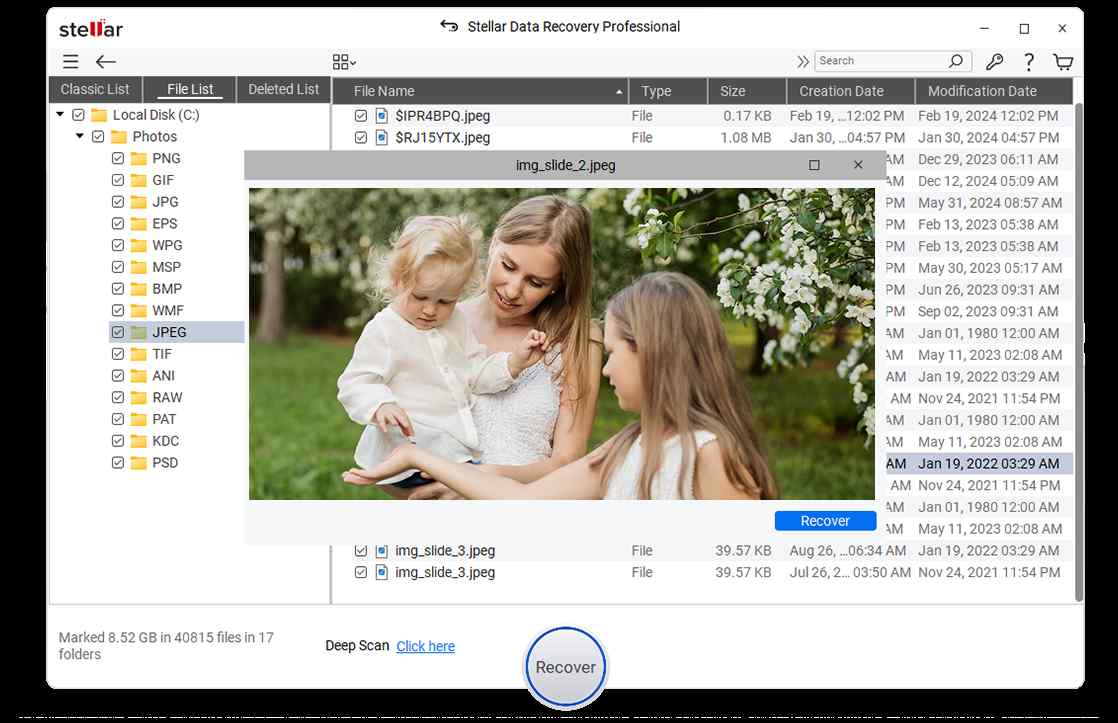
- Recovery
Select the game files and save them to another disk.
- Restore to console
Finally, copy the saved files to the appropriate folder on your console to see if it opens the data.
Steps to Fix Corrupted Storage on Console
Before attempting recovery, apply some basic troubleshooting. Often, the problem is easy to resolve.
- First, try resetting your console. A restart may resolve any transient glitches.
- Second, ensure that all updates are installed. This will eliminate problems that come from bugs.
In case of failure, enter the safe or recovery mode. Most consoles have options for:
- Database reorganization
- Storage repair
- System error resolution
You could also run internal diagnostics if your console is capable of doing so.
In case you are utilizing external storage, disconnect it properly and connect it again. Alternatively, try it out on another device such as a computer.
As a last resort, attempt recovery using recovery software before performing a factory reset.
Other Ways to Recover Your Data
If you still fail to solve your problem, there are other ways out for you to consider.
- One approach is to connect your storage space with your PC and then carry out repairs to your device through different programs installed in the system.
- Alternatively, you can reset your console to its factory settings; however, this will wipe out all your data.
- Remember to consider cloud-based backups too. Sites like PlayStation Plus or Xbox Cloud Saves may contain your saved data.
- Moreover, you could try looking for solutions in online gaming communities. They contain many users who have provided solutions to their own problems with specific game consoles.
Conclusion
Upon first impression, one would be afraid to see something like “storage corrupted,” yet, surprisingly enough, fixing this problem is quite easy most of the time. The thing is, there is no need for panic as long as you approach the situation rationally.
For example, it may be necessary to reboot the console or even update its firmware. Alternatively, it may be required to extract the data from the hard drive and connect the drive to the computer. Finally, one can always consider switching to backup storage.
In conclusion, do not neglect maintenance of your console and backing up files.