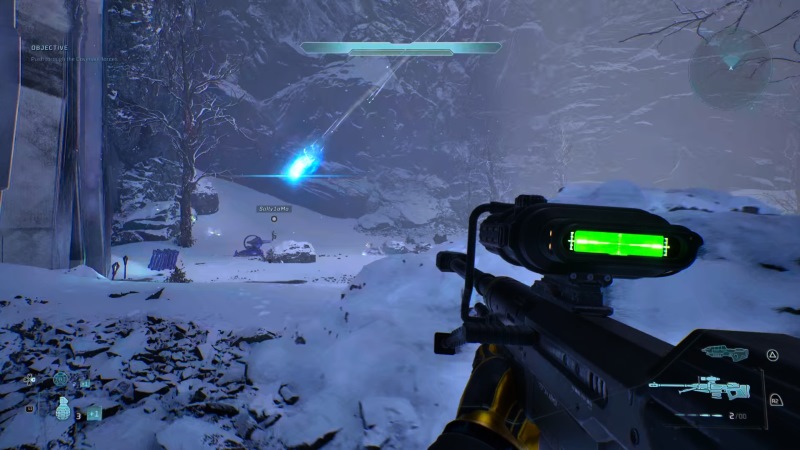
Halo Studios has released a major patch for Halo Campaign Evolved this week, which features a number of key fixes and additions for the remake of 2001’s classic Xbox shooter. Chief among the highlights is the improvement of the frame rate on the PS5 version of the game, while an option to turn the Chromatic Aberration and Film Grain on/off has been implemented into the game. There’s plenty of other bug fixes that have also been added, and you can read the full details in the Halo Campaign Evolved patch notes below.
Halo Campaign Evolved was release for PS5, PC, and Xbox Series X/S on July 28, 2026. The game is a ground-up remake of the single-player portion of Halo: Combat Evolved, offering brand new visuals and quality-of-life improvements, in addition to new missions set before the events of the main game. You can read our full review here.
NEW VIDEO SETTINGS
CHROMATIC ABERRATION & FILM GRAIN
Chromatic Aberration and Film Grain are used throughout Halo: Campaign Evolved for a variety of visual effects and rendering systems.
With the August 17th update, players will now have the option to turn Chromatic Aberration and Film Grain on or off individually to better suit their visual preferences.
To toggle Chromatic Aberration or Film Grain on or off:
- Open the Settings menu using the Menu button (XBOX controller), Options button (PlayStation® controller), or F1 (Keyboard).
- Select Video.
- Navigate down to the Video Motion & Effects section.
Here you will find a checkbox-style toggle for each effect.
UPSCALING OPTIONS ON PC
While setting your Upscaling Quality to Native (100% render resolution) removes resolution upscaling, Halo: Campaign Evolved continues to use processing techniques for image reconstruction, anti-aliasing, and other graphical enhancements.
The August 17th update adds a new “None” setting under Upscaling Technique that allows upscaling and anti-aliasing to be turned off completely.
To turn off Upscaling:
- Open the Settings menu using the Menu button (XBOX controller), Options button (PlayStation® controller), or F1 (Keyboard).
- Select Video.
- Navigate down to the Advanced section.
- Select Upscaling Technique.
- Select None in the dropdown menu.
IN-GAME ACCOUNT UNLINKING HELP
The August 17th update introduces a new in-game method to start an account unlink request. Selecting this option opens your browser and prompts you to confirm your account details, then sign in to your Microsoft account.
Follow these steps to find the new Unlinking Help option:
- Open the Settings menu using the Menu button (XBOX controller), Options button (PlayStation® controller), or F1 (Keyboard).
- Select Account.
- Highlight Unlinking Help to view your currently linked accounts on the right side of the screen, and press the A button (XBOX controller), Cross button (PlayStation® controller), or Enter key (Keyboard) to begin the request process.
RESOLVED ISSUES
The following list contains issues that have been fixed or improved since the previous release. Many improvements come from Halo Support tickets submitted by our community. Thank you for participating and please keep submitting tickets!
GLOBAL
- Jackals can now be staggered more reliably when targeting their hands and feet.
- Implemented several fixes for Sgt. Johnson in Boarding Action to address issues that could block mission progression.
- The Assault Rifle’s rate of fire and spread have been corrected on XBOX and PC to match the weapon’s intended performance, consistent with its behavior seen on PlayStation®5.
- Fixed an issue where Marines and Flood Marines would not fire their Assault Rifles when the Magnified Skull was enabled.
- Marines equipped with a Battle Rifle will now fire their weapon as intended.
- Improved Active Camo behavior to reduce instances of uncloaking when falling from a ledge or walking over small bumps.
- Fixed an issue where console players using mouse and keyboard could experience inconsistent weapon firing.
- Attempting to reload the Magnum immediately after firing will now correctly start the reload process.
- Players can now interrupt the reload animation of the Fuel Rod Cannon, Rocket Launcher, or Needle Rifle by throwing grenades.
- Achievement progress will no longer be awarded incorrectly when using restricted Skulls or difficulty modifiers.
- Fixed an issue where achievements earned while playing offline were not awarded after reconnecting to the XBOX network, requiring players to repeat the unlock requirements.
- Reduced instances where audio would become muddy, crackly, and pop during the mission Keyes.
- Campaign Remix will no longer crash when Flood replace a group of enemies intended to enter vehicles.
- Improved the account linking process where failing to make a Microsoft account would require a full title restart to attempt linking again.
PC
- Numerous improvements to PC stability and performance have been made, including:
- Mouse & keyboard custom key bindings will no longer reset to default after restarting the game.
- Adjusted Maximum Frame Rate options when using VSync on high refresh rate displays to prevent stability issues.
- Improved stability when using XeSS Frame Generation and an in-game maximum frame rate limit.
- Reduced occurrences of stability issues when loading a co-op session.
- Added support for all graphics quality options across all supported devices.
- Players can now select any graphics quality option, from Very Low to Ultra, regardless of their device type or hardware class.
- All supported AMD graphics cards now properly utilize Advanced Shader Delivery, significantly reducing shader loading times and minimizing in-game hitching.
- Frame rate during cinematic playback has been improved while using Frame Generation.
- For improved performance, Frame Generation will automatically turn off during cinematics and then turn back on when gameplay resumes.
PLAYSTATION®5
- Enemies and objects are less likely to appear to skip frames or stutter in high-activity areas.
- Frame rates have been improved, resulting in smoother gameplay.
[Source – Halo Campaign Evolved Patch Notes]