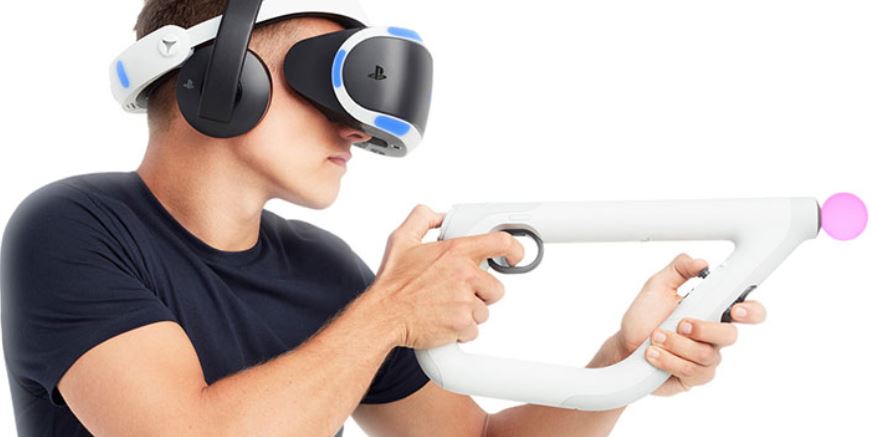
The PlayStation VR Aim controller has now launched alongside the first-party exclusive, sci-fi first-person shooter, Farpoint, and there’s set to be more PlayStation VR games that support VR Aim controller in the future.
Now that you’ve unpacked your Aim VR controller, you probably want to know how to set it up.
1. Turn on your PS4 and make sure you have the latest system software update.
2. Attach the USB cable from the PSVR Aim controller to one of the USB ports on the PS4.
3. Press the PS button on the Aim controller to pair the device with your console.
4. You’ll need to keep your PlayStation VR Aim controller charged to use it wirelessly. You can do this at any time by using the supplied USB lead, and charge it with the PS4 power on or in Rest Mode.
5. The VR Aim is fully charged when the sphere stops flashing.
6. Unplug it from USB when it’s charged, and set your PlayStation camera approximately 1.4m high and stand about 2m away from the camera.
7. Use your DualShock 4 to navigate to your PlayStation VR Aim-enabled game, and start. Pick up your Aim controller and get ready for action!
Check out the compatible PSVR Aim games, which includes Farpoint VR and many others.
More Guides
- How To Connect Bluetooth Headphones To PS4
- PlayStation Support: Live Chat, Email and Telephone Number
- How To Sync PS4 Controller
- How to Connect PS4 Controller to iPhone
- How to Connect Discord On PS4 For Chat
- How To Fix PS4 Pro Flashing Black Screen
- How to fix your PS4 controller syncing issues
- PSN Error WC-40382-7: How To Fix Card Issues On PlayStation Store
- PlayStation VR – How To Fix Blurry Vision
- How To Fix PS4 Disc Issues and Errors
- PS4 Troubleshooting: How To Fix Auto-Eject Loop
- How To Fix PS4 ‘Game Saved Data Cannot Upload’ Error